
App Links & Deep Linking API
Open links to your domain directly in your Android app with App Links and custom URL scheme deep linking.
The WebViewGold App Links / Deeplinking API enables users to open specific pages in your app from external sources like email, social media, or messaging apps.
WebViewGold for Android supports two deep linking methods:
- Standard URL-based Deep Links: e.g.
https://www.example.org/subpages/example1 - Custom Scheme Deep Links: e.g.
webviewgold://https://www.example.org/subpages/example2
Step 1: Configure Your Link Scheme in AndroidManifest.xml
To support standard deep linking, configure your AndroidManifest.xml to associate your domain with your app. Replace www.webviewgold.com with your actual domain (e.g., www.example.org):

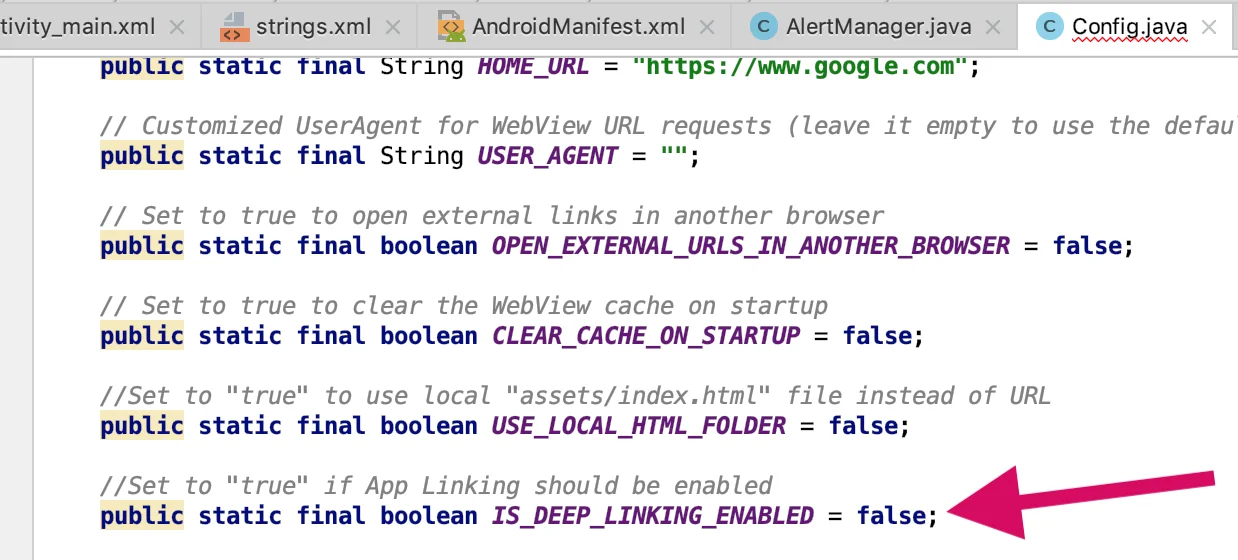
Step 2: Enable Deep Linking in Config.java
In your Config.java file, enable deep linking features:
// Enables standard deep linking (https:// links)
public static final boolean IS_DEEP_LINKING_ENABLED = true;

// Enables custom scheme deep linking (e.g., webviewgold://)
public static final boolean IS_CUSTOM_SCHEME_ENABLED = true;

// Set your desired scheme prefix (must match AndroidManifest.xml)
public static final String CUSTOM_DEEPLINK_SCHEME = "webviewgold";
Step 3: Verify Domain Ownership (for URL-based Deep Links)
To enable deep linking using HTTPS URLs, you must verify domain ownership with Google. Follow the Google Site Verification Guide.
Testing Your App Links
You can test both types of links via Android Studio or terminal:
- Using Android Studio: Open the App Links Assistant from the Tools menu for simulation and troubleshooting.
- Using Terminal or Command Prompt:
- Run the following command:
adb shell am start -a android.intent.action.VIEW -d "webviewgold://https://www.example.org/subpages/example2" com.webviewgold.myappname- Replace
com.webviewgold.myappnamewith your actual app package name. - You can also test with a URL link like
https://www.example.org/subpages/example1.
- Replace
- Run the following command:
Once everything is set up, users can open your app directly to any specific page using deep links like:
https://www.example.org/subpages/example1webviewgold://https://www.example.org/subpages/example2
Questions? Ping us anytime!