
Build & Publish Your App to the App Store
Publish your WebView app to the Apple App Store: full publishing service, manual process, and changing the bundle identifier.
Your app is ready, and now it's time to upload it to the Apple App Store and reach an audience of millions? Exciting! The following section will show you how to do it — whether you want to do it yourself or have some work done for you.
Prefer a browser-based workflow? The WebViewGold Cloud Builder (paid add-on) handles configuration, building, and uploads right from your browser without Xcode.
Option A) Full App Publishing Service
Bringing your app to the App Store should be smooth and stress-free. Treat yourself to some support — with appsubmitter.io, you can enjoy a convenient, expert-led publishing process — so you can focus on what matters most while we handle the details.
Why Choose appsubmitter.io?
- Save time – We take care of certificates, screenshots, and uploads.
- Expert handling – Your app is submitted professionally, with no hassles.
- Published under your account – You have full control, no restrictions.
- Approval guarantee – If Apple rejects your app, you get a full refund (see Terms and Conditions).
Ready to launch? Book a video call and let’s get your app live!
Option B) Manual Publishing Process
You don't want to use our stress-free submission service, but you want to deal with it yourself? Sure, follow this guide:
Use your Apple Developer Program Subscription to publish your app in the App Store. Before uploading, please change the Bundle Identifier (also called the "Bundle ID"):
Tip: The WebViewGold Cloud Builder (paid add-on) automatically handles bundle identifiers and App Store uploads, so you can skip this step.
Repeat this process for each target such as OneSignalNotificationServiceExtension, AppClip, and other extensions. Each target's bundle identifier must use your main app bundle ID as a prefix. For example, if your main app bundle ID is com.my.app, the OneSignal app extension bundle ID should be com.my.app.OneSignalNotificationServiceExtension.
Please note that the Bundle Identifier and your app's displayed name (the Product Name) are the only identification components that you need to change in the app template. Please avoid changing the Project Name (called "WebViewGold"; it is the name that sits at the top of the project navigator in the left panel of the Xcode window) as it can cause issues. The Project Name is not visible to users of your app and is not important in the app submission process.
Afterward, please add customized texts to the permission details in terms of location, photo/camera access, and all other API details. Delete permissions which are not required by your app - except for the Privacy - Tracking Usage Description key (which is required by Apple for all apps; removing this key will cause your app to crash). You find the details in Info.plist file: 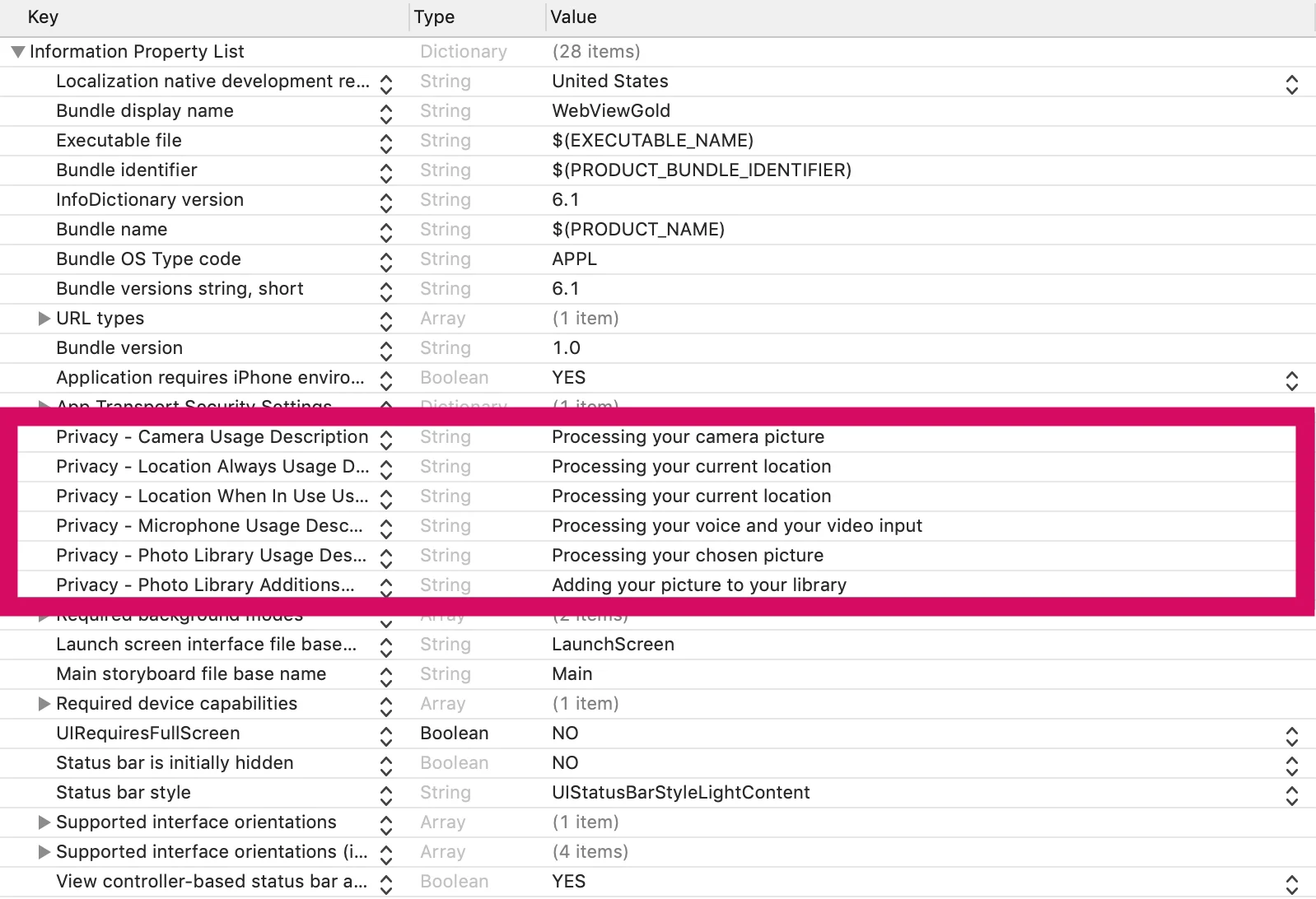
Afterward, please consider a professional User Experience/UX Review on UXreviewer.io or similar services for best App Store approval results. Such a UX review also helps you to achieve better customer retention in general for your product with suggestions for improvement.
Great, now you are ready for the App Store submission of your web app. App Store approval works in most cases without any problems but highly depends on the content you provide in your app as WebViewGold does not provide content by itself. Please make sure to submit an app using a website/web app that behaves like a mobile app (for example, by using responsive design). Make sure that the content does not contradict the legal requirements of the Apple Developer Program. Use different link colors than standard HTML colors for better user experience.
Afterward, please follow the steps of this second video:
One addition to the tutorial video: In timestamp 07:00, after creating the App Identifier, please make sure to activate both the capabilities "App Groups" and "Push Notifications" in the App Identifier section on the Apple Developer Portal (choose the correct App ID here). See these screenshots: https://prnt.sc/xz4hg5 & https://prnt.sc/xz4j01. Restart Xcode afterward.
The App Store upload asks you whether you use encryption? We do not offer legally binding advice, but "No" must be indicated here in most cases. However, if HTTPS is used, an annual security report may have to be submitted to US authorities. More information about this can be found here.
The App Store upload asks you whether you use the Ad ID / IDFA? The Ad ID is included because AdMob is integrated, but not active by default. Removing the AdMob SDK will produce a lot of dependency errors, so the easiest suggestion would be to choose "Yes" at the "Does your app use the Ad ID?" question and selecting the tickbox "Attribute this app installation to a previously served advertisement" only (leave all other tickboxes blank). So, if you use AdMob banner/interstitial ads in WebViewGold, please configure this screen like this. If you do not use AdMob banner/interstitial ads in WebViewGold while the SDK is still embedded (which is the typical case while not using AdMob in WebViewGold), please select these options.
If Apple rejects your app, please use Apple Resolution Center to explain the app feature in general (like "Our app enables our existing users to login in/use our products on their handheld device/....). If Apple still rejects your app, we can offer you a full refund of the WebViewGold license (by claiming within 14 days after purchase; see Terms and Conditions). Just contact us by mail.
Congrats on your own published iOS app! 🎉
No time or don't you feel like signing and uploading manually? Consider the appsubmitter.io service:
Of course, after the release should be celebrated first! But then perhaps the next project is already on the agenda? Our App Specialists are also happy to help you with individual development services for web apps, iOS apps, Android apps, chat bots, marketing ideas, and much more. Learn more