
URL Handling API
Decide which links open inside your app, in an in-app browser tab, or in Safari — full URL handling control for iOS.
To improve user experience, it's often beneficial to customize how your app handles different types of web links. For example, social media buttons can be configured to open in the system browser or respective app, rather than within your app. WebViewGold provides flexible settings to customize URL handling for your WebView-based iOS app.
Types of Links:
- External Links: Links that lead to a different domain from your app's primary domain.
- Example: If your app's domain is mydomain.com, an external link would be google.com.
- Internal Links: Links that stay within the same domain as your app.
- Example: If your app's domain is mydomain.com, an internal link would be mydomain.com/purchase.
- Special Links: Links that include special attributes, such as target="_blank".
To configure the URL Handling API, open Config.swift:
- To define the default behavior for external links:
- Set
externalLinkHandlingOptionsto0to open external links in-app by default, or to2to ALWAYS open them in another browser (Safari).
- Set
- To define the default behavior for special links (e.g., target="_blank"):
- Set
specialLinkHandlingOptionsto0to open special links in-app,1to open them in a new tab (an additional in-app browser), or2to open them in another browser (Safari).
- Set
- To set domains which always open in Safari (regardless of the
externalLinkHandlingOptionssetting):- Add the desired domains to the
safariwhitelistlist. - Insert another host like so: ["alwaysopeninsafari.com", "google.com", "m.facebook.com"].
- Please enter the host exactly how you link to it (with or without www, but always without http/https).
- Add the desired domains to the
- To set domains which never open in Safari (regardless of the
externalLinkHandlingOptionssetting):- Add the desired domains to the
safariblacklistlist. - Insert another host like so: ["alwaysopeninsafari.com", "google.com", "m.facebook.com"].
- Please enter the host exactly how you link to it (with or without www, but always without http/https).
- Add the desired domains to the
- To set domains which always or never open in an in-app tab (regardless of the
externalLinkHandlingOptionssetting):- Add the desired domains to the
alwaysOpenInInAppTaborneverOpenInInAppTablist.
- Add the desired domains to the
Open links in a tab/additional In-App-Browser
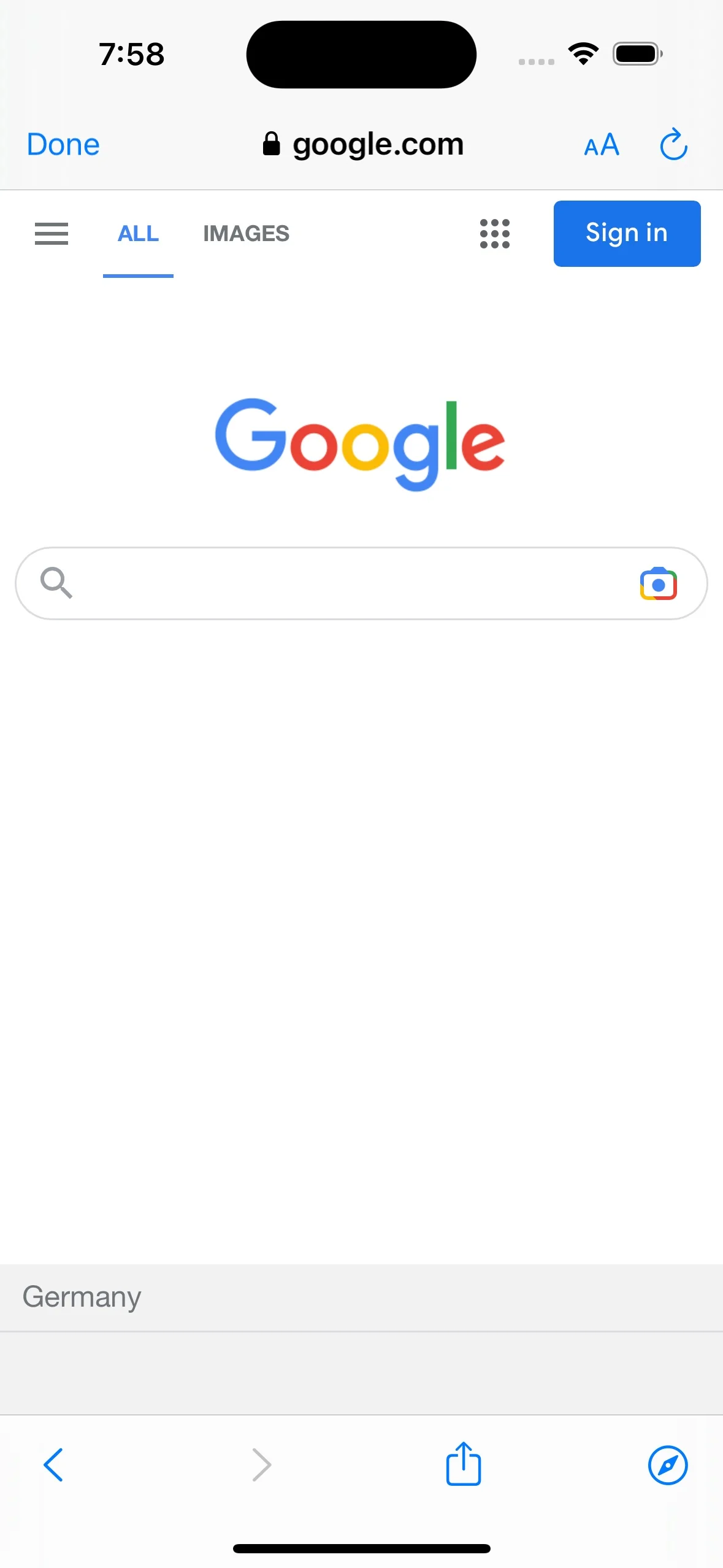
Some links, like a Terms and Conditions page, may not be significant enough to open in an external system browser yet too specific for your app's primary WebView. WebViewGold provides a creative solution for handling these links: an in-app browser tab that opens over the main WebView, providing a hybrid app and browser experience. Here's what it will look like:
Key Features of the In-App Browser Tab:
- The in-app browser tab includes an address bar and navigation buttons, offering a more browser-like experience than the primary WebView.
- Ideal for content that requires easy navigation, such as tutorials, knowledge bases, or pages with specific information.
How to Use the In-App Browser Tab in Your WebView-Based iOS App:
To open a link in the in-app browser tab, set specialLinkHandlingOptions to 1 and format the URL in your HTML as follows:
<a href="https://www.example.com" target="_blank">Open link in an in-app tab</a>
Simply, a special link is classified as a link that has the "_blank" target attached. In a normal browser, this would make the link open in a new tab. In WebViewGold app, you can make it open in the in-app tab instead.
Please note that if the link you are using is external (has a different domain to your website like "www.google.com", for example) please also make sure that externalLinkHandlingOptions is set to 0, as opening all external links in another browser would override the special-external link to open in the Safari app instead.
To see how your app will handle different types of links, use the following URL as the WebView URL during testing:
Test Link: https://www.webviewgold.com/demo/testlinks.php
Note: You can also open the same domain in your desktop browser to view the source code and copy the format for your links.