
Dynamic App Icon API
Switch between alternative app icons at runtime in your iOS WebView app — triggered from your web app.
This API allows the users of your app to change the app icon with the click of button. WebViewGold allows up to three alternative app icons from your default app icon. Whenever the app icon is dynamically changed, the user will be notified upon successful completion: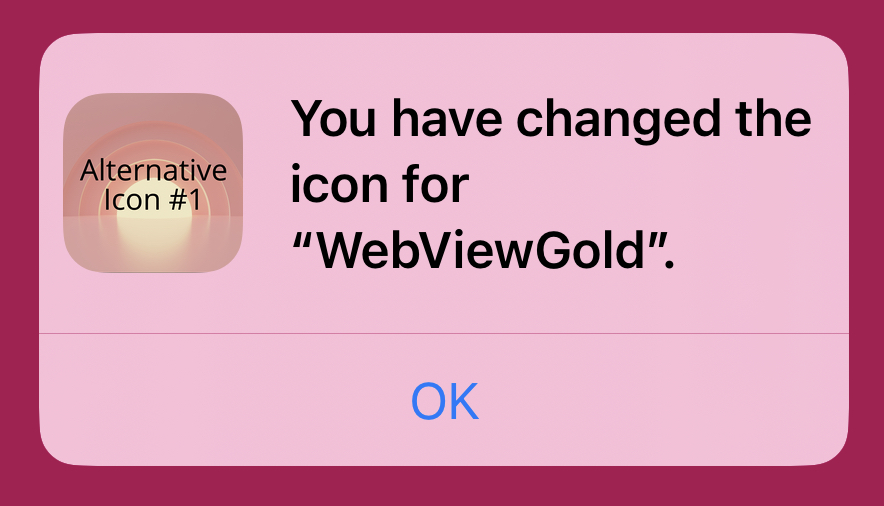
If you wish to change the app icon of your app on behalf of your users, you can do so by publishing a new version of your app with the new app icon installed. See how to change your app icon on WebViewGold here.
To dynamically change the app icon, just link to one of the following URL formats:
<script>
// Change to Alternative App Icon 1
window.location.href = "changeicon://icon1"

// Change to Alternative App Icon 2
window.location.href = "changeicon://icon2"

// Change to Alternative App Icon 3
window.location.href = "changeicon://icon3"

// Revert to the Default App Icon
window.location.href = "changeicon://default"

</script>
View a demonstration and testing page for this API here.
To set your alternative app icons, open your app files in Finder and navigate to WebView-Swift/WebView/ApplicationIcon/AppIconAlternate.
In this folder, you will see template app icons for all of the required app icon sizes in iOS (iPhones and iPads), for each alternative icon:
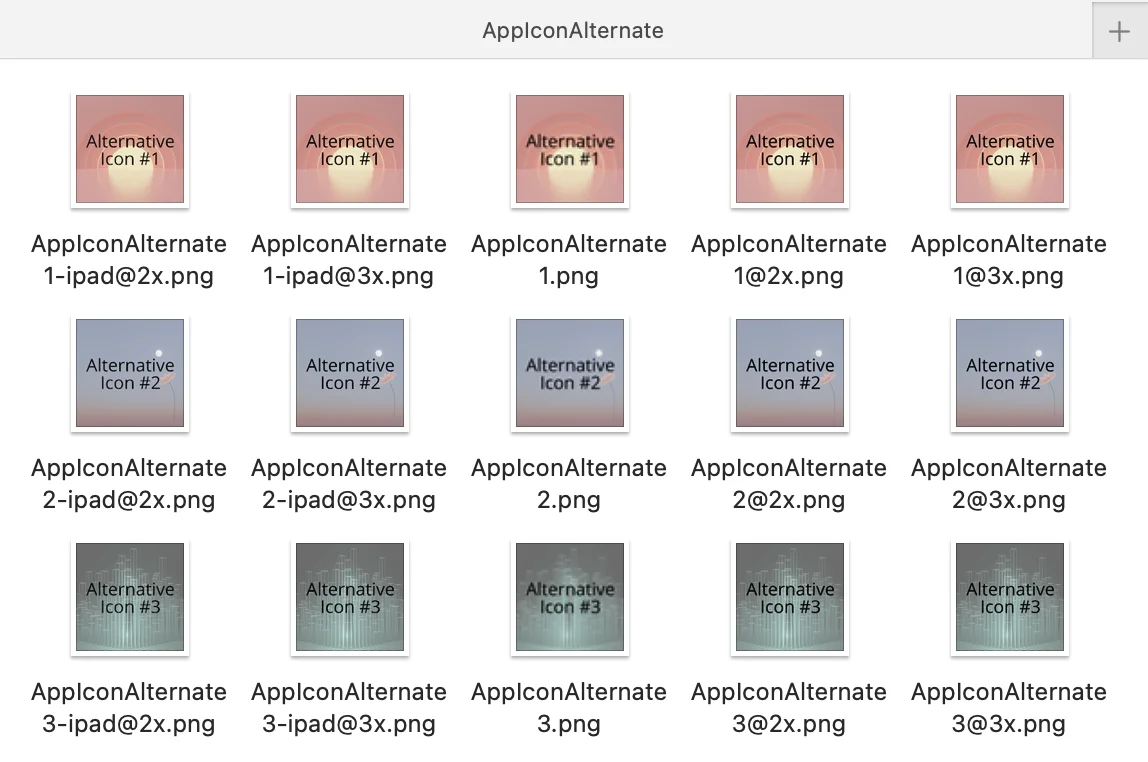
The default names of each alternative app icon are: "AppIconAlternate1", "AppIconAlternate2" and "AppIconAlternate3".
If you like, you can change the default names by editing the alternativeAppIconNames variable in the Config file:

Each app icon (for example, 'AppIconAlternateX') requires five different sizes, which are described by the file name suffix:
- For iPhones:
- AppIconAlternateX (60x60 pixels)
- AppIconAlternateX@2x (120x120 pixels)
- AppIconAlternateX@3x (180x180 pixels)
- For iPads:
- AppIconAlternateX-ipad@2x (152x152 pixels)
- AppIconAlternateX-ipad@3x (167x167 pixels)
When replacing these template app icons with your own, make sure they follow the same file name format (with the suffixes listed above) with the correct image size.
View a more detailed guide on app icon specifications here.
To activate this API (also for App Store Review), please open Info.plist as source code (right-click on the file and select "Open As" -> "Source Code" from the contextual menu): Within Info.plist, search for
<key>CFBundleIcons</key>
	<dict>
		<key>CFBundlePrimaryIcon</key>
		<dict>
			<key>CFBundleIconFiles</key>
			<array>
				<string></string>
			</array>
			<key>UIPrerenderedIcon</key>
			<false/>
		</dict>
	</dict>
and replace it with
<key>CFBundleIcons</key>
<dict>
	<key>CFBundleAlternateIcons</key>
	<dict>
		<key>AppIconAlternate1</key>
		<dict>
			<key>CFBundleIconFiles</key>
			<array>
				<string>AppIconAlternate1</string>
			</array>
			<key>UIPrerenderedIcon</key>
			<false/>
		</dict>
		<key>AppIconAlternate2</key>
		<dict>
			<key>CFBundleIconFiles</key>
			<array>
				<string>AppIconAlternate2</string>
			</array>
			<key>UIPrerenderedIcon</key>
			<false/>
		</dict>
		<key>AppIconAlternate3</key>
		<dict>
			<key>CFBundleIconFiles</key>
			<array>
				<string>AppIconAlternate3</string>
			</array>
			<key>UIPrerenderedIcon</key>
			<false/>
		</dict>
	</dict>
	<key>CFBundlePrimaryIcon</key>
	<dict>
		<key>CFBundleIconFiles</key>
		<array>
			<string></string>
		</array>
		<key>UIPrerenderedIcon</key>
		<false/>
	</dict>
</dict>
Moreover, search for
<key>CFBundleIcons~ipad</key>
<dict>
    <key>CFBundlePrimaryIcon</key>
    <dict>
        <key>CFBundleIconFiles</key>
        <array>
            <string></string>
        </array>
        <key>UIPrerenderedIcon</key>
        <false/>
    </dict>
</dict>
and replace it with
<key>CFBundleIcons~ipad</key>
<dict>
	<key>CFBundleAlternateIcons</key>
	<dict>
		<key>AppIconAlternate1</key>
		<dict>
			<key>CFBundleIconFiles</key>
			<array>
				<string>AppIconAlternate1-ipad</string>
			</array>
			<key>UIPrerenderedIcon</key>
			<false/>
		</dict>
		<key>AppIconAlternate2</key>
		<dict>
			<key>CFBundleIconFiles</key>
			<array>
				<string>AppIconAlternate2-ipad</string>
			</array>
			<key>UIPrerenderedIcon</key>
			<false/>
		</dict>
		<key>AppIconAlternate3</key>
		<dict>
			<key>CFBundleIconFiles</key>
			<array>
				<string>AppIconAlternate3-ipad</string>
			</array>
			<key>UIPrerenderedIcon</key>
			<false/>
		</dict>
	</dict>
	<key>CFBundlePrimaryIcon</key>
	<dict>
		<key>CFBundleIconFiles</key>
		<array>
			<string></string>
		</array>
		<key>UIPrerenderedIcon</key>
		<false/>
	</dict>
</dict>
This is the default setting regarding alternative app icon names and amount of alternative app icon files.