
Universal Links API
Open links to your domain directly in your iOS app with Apple Universal Links — setup, AASA file, and troubleshooting.
The Universal Links API simplifies linking to content within your app, providing a more seamless and native user experience. WebViewGold enables you to configure your domain so that links from apps like Mail, Safari, and others automatically open within your WebViewGold-based app—without requiring additional prompts.
Note: the app must be installed on the user's device first for this feature to work.
Alternatively, it is possible to use our Deep Linking API. While it operates in a similar manner, it uses a different syntax. However, it's worth noting that the syntax of the Universal Links API is more common than the syntax of the Deep Linking API. For most apps, it's wise to choose either one, but not both.
To set up Universal Links in your iOS app, please follow the steps below:
- Apple Developer Center Setup:
- Log in to your account on the Apple Developer Center.
- Click on 'Certificates, Identifiers & Profiles'.
- Under 'Identifiers', select 'App IDs' and then choose your app's ID from the list.
- Under the 'App Services' section, check the 'Associated Domains' option and save your changes.
- Xcode Setup:
- Open your app project in Xcode.
- Select the target (in most cases "WebViewGold"). In the 'Signing & Capabilities' tab, navigate to the 'Associated Domains' section. Click on '+' to add a domain. Your domain should be prefixed with 'applinks:', like this:
applinks:example.org&applinks:www.example.org: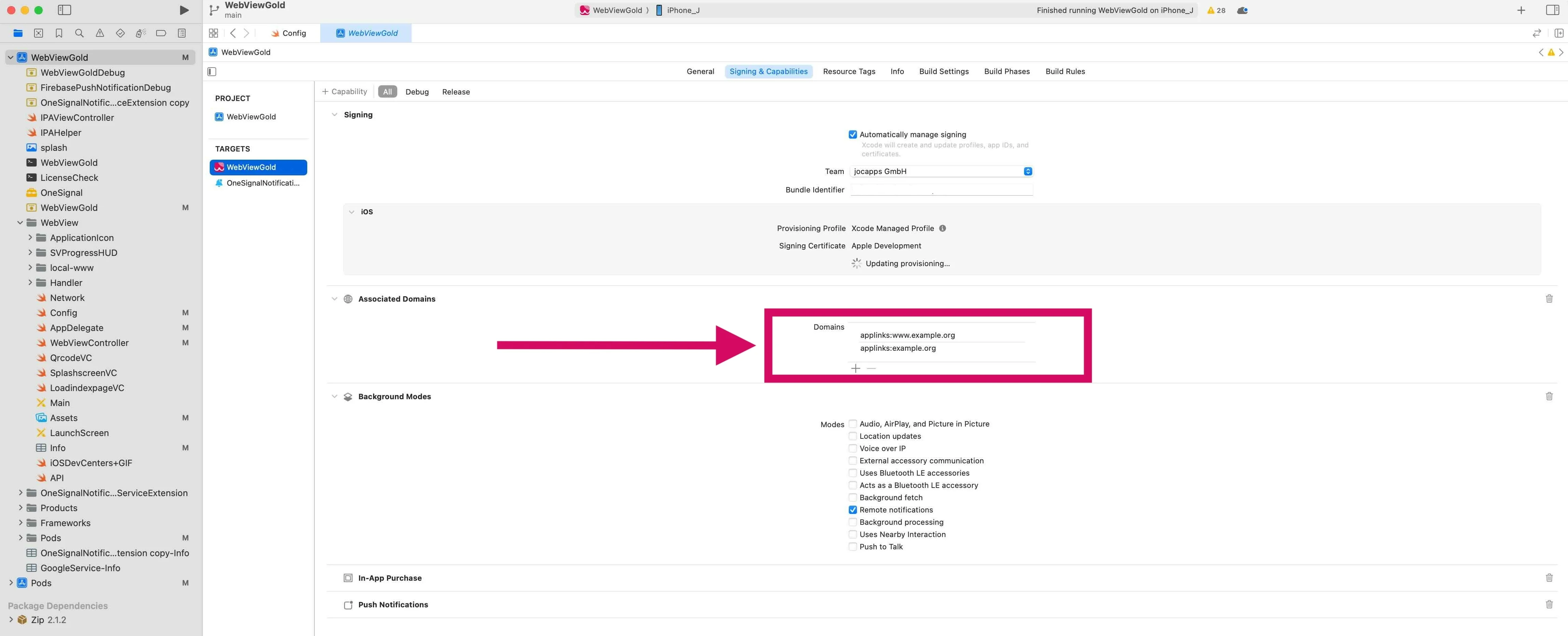
- In Config.swift, turn ShowExternalLink to true.
- Be mindful of subdomains. There's a distinction between "www.*" and non-"www" domains (consider adding both). Ensure that you have the correct provisioning profile with the 'Associated Domains' capability. If not, Xcode should prompt you to fix it.
- Server Setup:
- On your website server, you need to host an Apple App Site Association (AASA) file at the root level of your server or using the
/.well-known/prefix. E.g.,https://example.org/.well-known/apple-app-site-association - The AASA file should contain details about the app and the associated domains. Refer to the official documentation for the exact structure. Ensure that the apple-app-site-association file is hosted on a server that supports HTTPS, not just HTTP.
Done! :-) Testing in the Simulator isn't as effective as on a real device. For best results, use an actual iPhone or iPad.